K3s Single Node: From Zero to Publicly Accessible
Set up k3s on a single node, deploy an app, configure Ingress, DNS, and TLS — everything needed to expose a service to the internet.
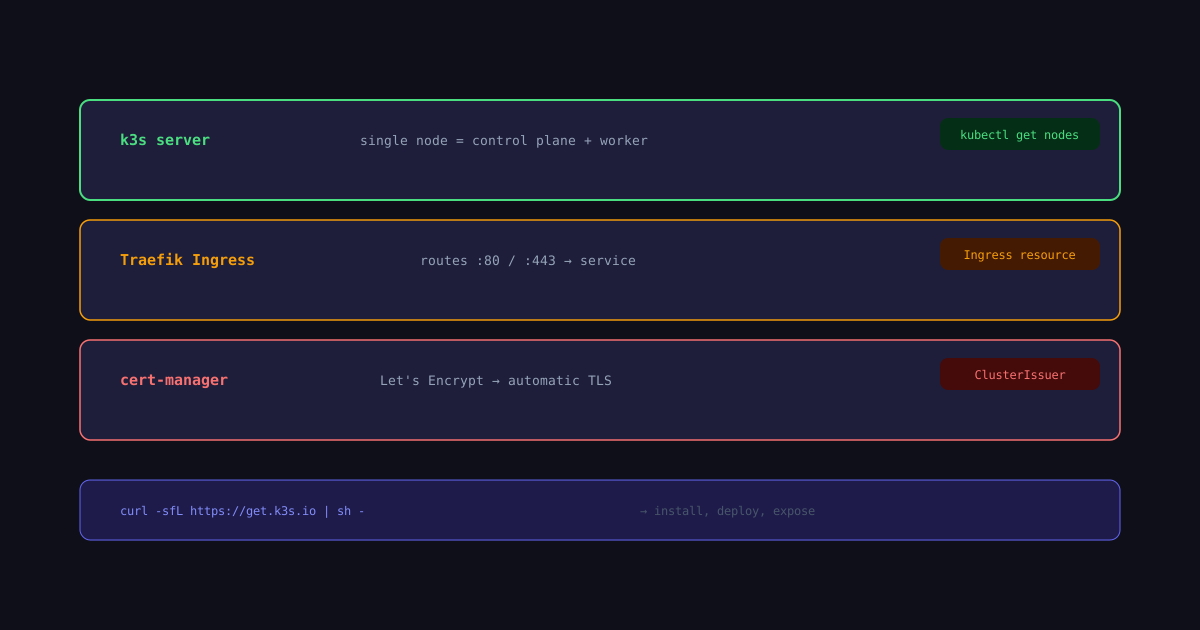
K3s is a lightweight, certified Kubernetes distribution. A single-node k3s cluster gives you a full Kubernetes API, Traefik ingress controller, and ServiceLB — all running on one machine. No etcd, no multi-node overhead. Just a working cluster you can deploy to in minutes.
This guide walks through installing k3s, deploying an app, and exposing it to the internet with a domain, TLS certificate, and proper DNS.
Prerequisites
- A Linux server (Ubuntu 22.04+, Debian 12, or similar) with a public IP
- A domain name with DNS access
- Ports 80 and 443 open on the server
- SSH access to the server
If you are running on a cloud provider (Vultr, Hetzner, DigitalOcean), the default firewall usually blocks these ports. Open them before continuing.
Install k3s
SSH into your server and run:
curl -sfL https://get.k3s.io | sh -This installs k3s as a systemd service and starts it immediately. Verify:
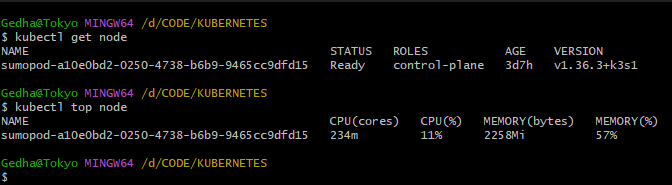
sudo kubectl get nodesYou should see one node with status Ready. If it says NotReady, wait 30 seconds — the kubelet needs time to pull images.
To use kubectl without sudo:
sudo cp /etc/rancher/k3s/k3s.yaml ~/.kube/config
sudo chown $(id -u):$(id -g) ~/.kube/config
chmod 600 ~/.kube/config
What k3s installed
K3s bundles several components that normally require separate setup:
- Traefik — ingress controller, deployed as a DaemonSet on port 80/443
- ServiceLB (formerly Klipper) — bare-metal load balancer that binds to the host’s network interface
- SQLite — default datastore instead of etcd (fine for single node)
- CoreDNS — cluster DNS
- local-path-provisioner — default StorageClass for PersistentVolumeClaims
You can verify Traefik is running:
kubectl get pods -n kube-system | grep traefik
Deploy a sample app
Create a simple thanos Js deployment and service:
# app.yaml
apiVersion: apps/v1
kind: Deployment
metadata:
  name: thanos-deployment
  namespace: thanos
  labels:
    app: thanos-app
spec:
  replicas: 1
  selector:
    matchLabels:
      app: thanos-app
  template:
    metadata:
      labels:
        app: thanos-app
    spec:
      containers:
      - name: thanos
        image: gedharizka/thanos:latest
        ports:
        - containerPort: 80
---
apiVersion: v1
kind: Service
metadata:
  name: thanos-service
  namespace: thanos
  labels:
    app: thanos-app
spec:
  selector:
    app: thanos-app
  ports:
  - protocol: TCP
    port: 80
    targetPort: 80
  type: ClusterIP
Apply it:
kubectl apply -f app.yamlVerify pods are running:
kubectl get pods -n thanosExpose with Ingress
K3s ships with Traefik as the default ingress controller. Create an Ingress resource to route external traffic to your service:
# ingress.yaml
apiVersion: networking.k8s.io/v1
kind: Ingress
metadata:
  name: thanos-ingress
  namespace: thanos
  annotations:
    kubernetes.io/ingress.class: traefik
spec:
  ingressClassName: traefik
  rules:
  - host: thanos.gedha.web.id
    http:
      paths:
      - path: /
        pathType: Prefix
        backend:
          service:
            name: thanos-service
            port:
              number: 80
Apply:
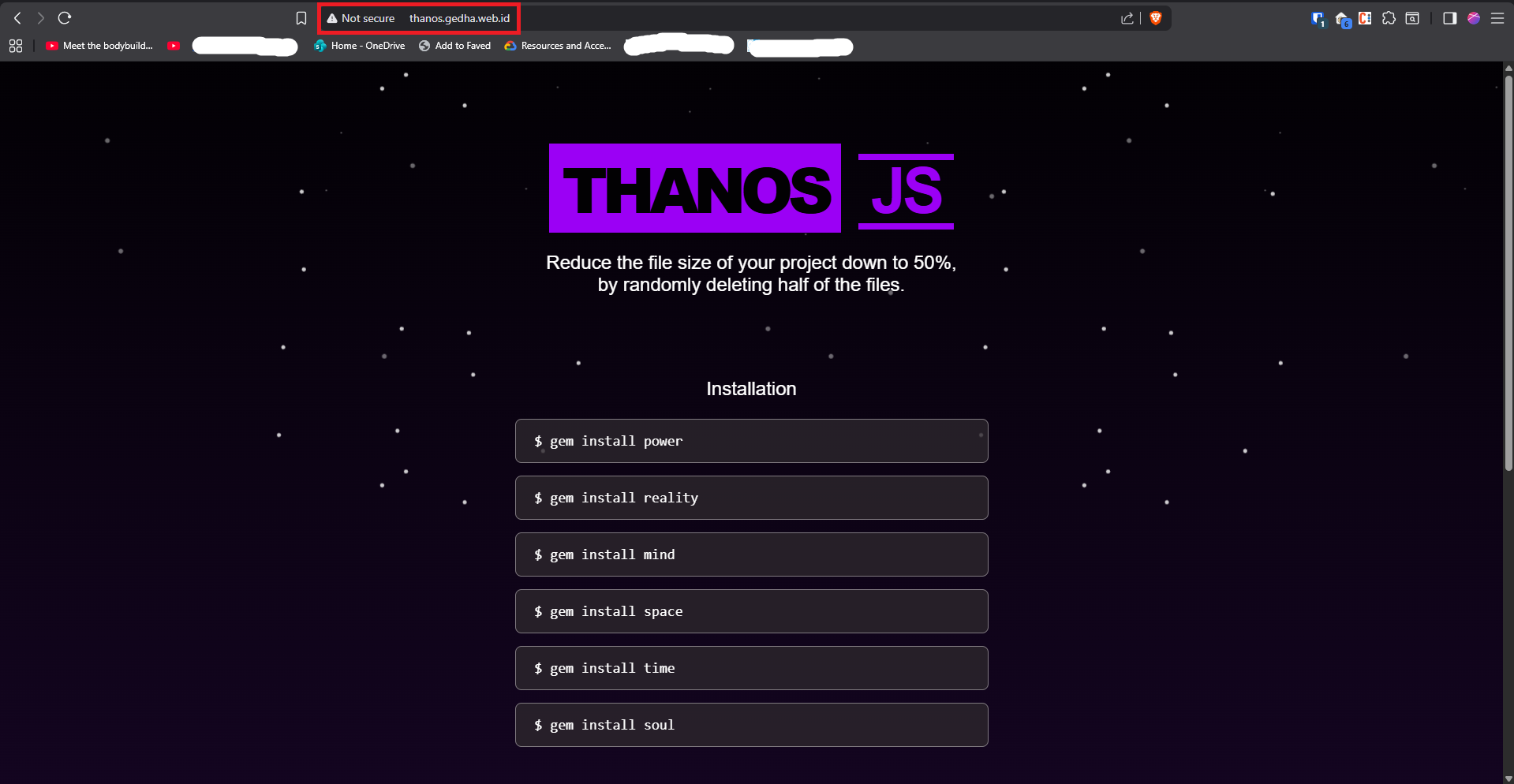
kubectl apply -f ingress.yamlAt this point, http://thanos.gedha.web.id should serve nginx — but only if DNS is set up.
DNS setup
Create an A record in your DNS provider:
| Type | Name | Value | TTL |
|---|---|---|---|
| A | app | your-server-public-ip | 300 |
If you want the root domain (yourdomain.com) to work too, add another A record with @ as the name.
DNS propagation takes 1–30 minutes depending on your provider. Verify from your local machine:
dig app.yourdomain.com +shortIt should return your server’s public IP.
TLS with cert-manager
Install cert-manager to automatically provision Let’s Encrypt certificates:
kubectl apply -f kubectl apply -f https://github.com/cert-manager/cert-manager/releases/download/v1.21.1/cert-manager.yamlWait for cert-manager pods to be ready:
kubectl get pods -n cert-manager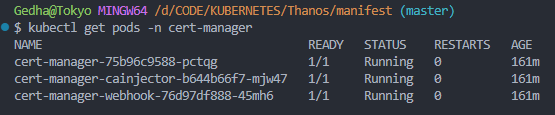
Create a ClusterIssuer for Let’s Encrypt:
# cluster-issuer.yaml
apiVersion: cert-manager.io/v1
kind: ClusterIssuer
metadata:
  name: letsencrypt-prod
spec:
  acme:
    # Server Let's Encrypt production
    server: https://acme-v02.api.letsencrypt.org/directory
    # Ganti dengan email Anda untuk notifikasi kadaluarsa SSL
    email: gehdharizka@gmail.com
    privateKeySecretRef:
      name: letsencrypt-prod-key
    solvers:
    - http01:
        ingress:
          ingressClassName: traefik
Apply:
kubectl apply -f cluster-issuer.yamlNow update your Ingress to request a certificate:
# ingress-tls.yaml
apiVersion: networking.k8s.io/v1
kind: Ingress
metadata:
  name: thanos-ingress
  namespace: thanos
  annotations:
    kubernetes.io/ingress.class: traefik
    cert-manager.io/cluster-issuer: "letsencrypt-prod"
    traefik.ingress.kubernetes.io/router.entrypoints: websecure
spec:
  ingressClassName: traefik
  rules:
  - host: thanos.gedha.web.id
    http:
      paths:
      - path: /
        pathType: Prefix
        backend:
          service:
            name: thanos-service
            port:
              number: 80
  tls:
    - hosts:
      - thanos.gedha.web.id  # Ganti dengan domain Anda yang valid
      secretName: thanos-tls-secret # Nama secret tempat cert-manager menyimpan SSL
Apply:
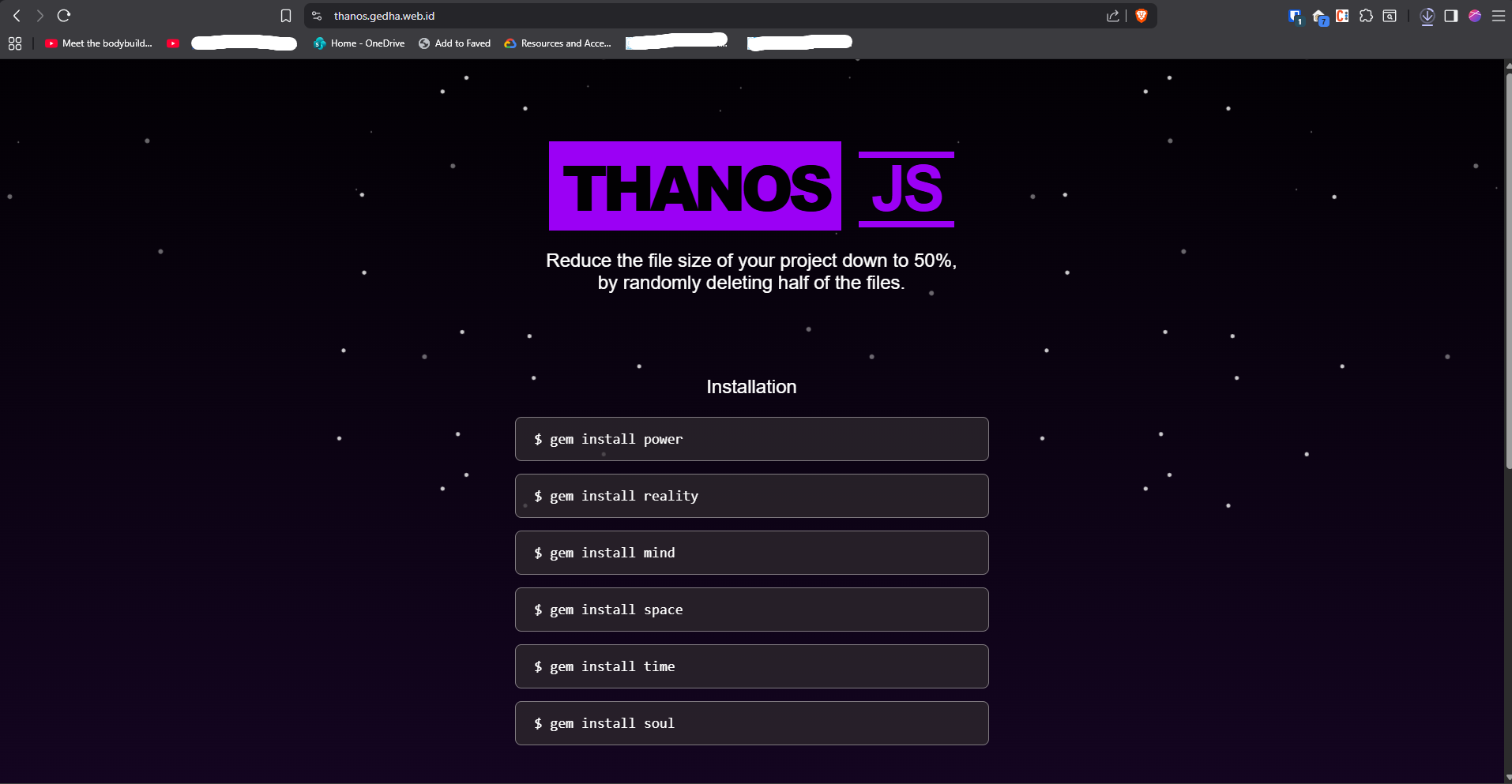
kubectl apply -f ingress-tls.yamlCert-manager will detect the annotation, create a Certificate resource, and use the ACME HTTP-01 challenge to get a certificate from Let’s Encrypt. This takes 1–5 minutes.
Check certificate status:
kubectl get certificateWhen READY is True, TLS is active.
Firewall configuration
If your server has a firewall, open the required ports:
# UFW (Ubuntu)
sudo ufw allow 80/tcp
sudo ufw allow 443/tcp
sudo ufw allow 6443/tcp  # optional: remote kubectl access
For cloud providers, also check the security group / firewall rules in the control panel. The OS-level firewall alone is not enough if the cloud firewall blocks the ports.
Verify everything works
From your local machine:
# HTTP should redirect to HTTPS
curl -I http://app.yourdomain.com

# HTTPS should return nginx
curl https://app.yourdomain.com

# Check certificate details
curl -vI https://app.yourdomain.com 2>&1 | grep -i "issuer\|expire"
Open https://app.yourdomain.com in a browser. You should see the nginx welcome page with a valid TLS certificate.
Resource considerations
On a single node, all workloads share the same machine. Set resource requests and limits on your pods to prevent one app from starving others:
resources:
  requests:
    memory: "64Mi"
    cpu: "100m"
  limits:
    memory: "128Mi"
    cpu: "250m"
For a small VPS (2 vCPU, 4 GB RAM), keep total pod requests under 70% of available capacity. The OS, k3s, and Traefik need headroom too.
Troubleshooting
Ingress returns 404 or connection refused:
- Check Traefik is running:
kubectl get pods -n kube-system | grep traefik - Check Ingress resource exists:
kubectl get ingress - Verify the Service targets the right pods:
kubectl get endpoints nginx-demo
Certificate stuck in False state:
- Describe the Certificate:
kubectl describe certificate nginx-demo-tls - Check cert-manager logs:
kubectl logs -n cert-manager deploy/cert-manager - Common cause: port 80 not reachable from the internet (ACME HTTP-01 challenge needs it)
Pods stuck in Pending:
- Check node resources:
kubectl describe node— look atAllocated resources - The node might be tainted. K3s single-node usually has no taints, but check:
kubectl get nodes -o json | jq '.items[].spec.taints'
Next steps
- Monitoring: Install Prometheus + Grafana via Helm to track resource usage
- Backups: Use k3s’s built-in etcd snapshot (if using etcd) or back up the SQLite database at
/var/lib/rancher/k3s/server/db/state.db - Remote kubectl: Copy
/etc/rancher/k3s/k3s.yamlto your local machine and update the server IP - Multi-node: Add agent nodes with
curl -sfL https://get.k3s.io | K3S_URL=https://server:6443 K3S_TOKEN=token sh -
Keep reading
Related posts
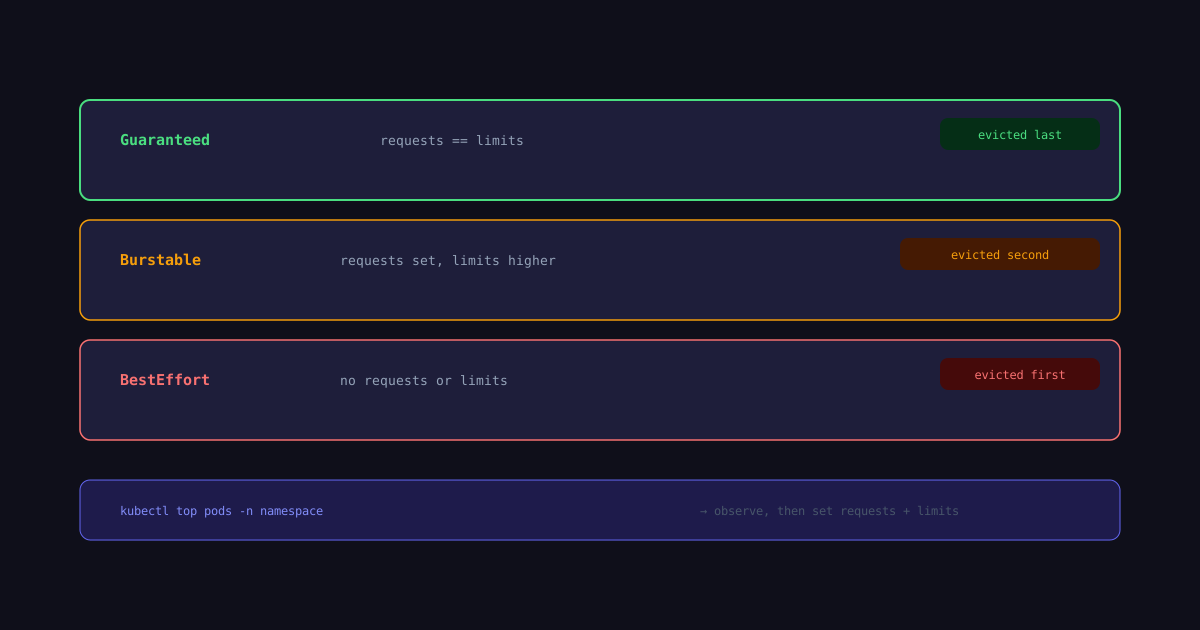
Kubernetes Resource Limits and Requests Explained
How CPU and memory requests and limits work in Kubernetes — and why wrong values cause OOMKilled and throttling.
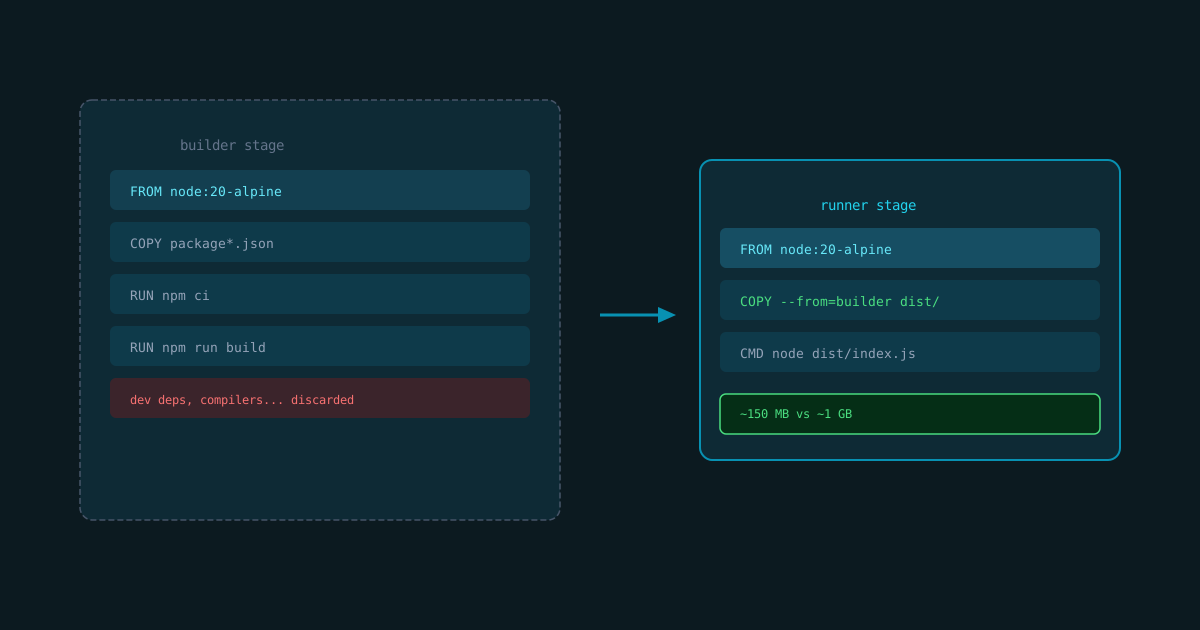
Docker Multi-Stage Builds for Smaller Images
Cut production image size with multi-stage builds — keep build tools out of the final artifact.
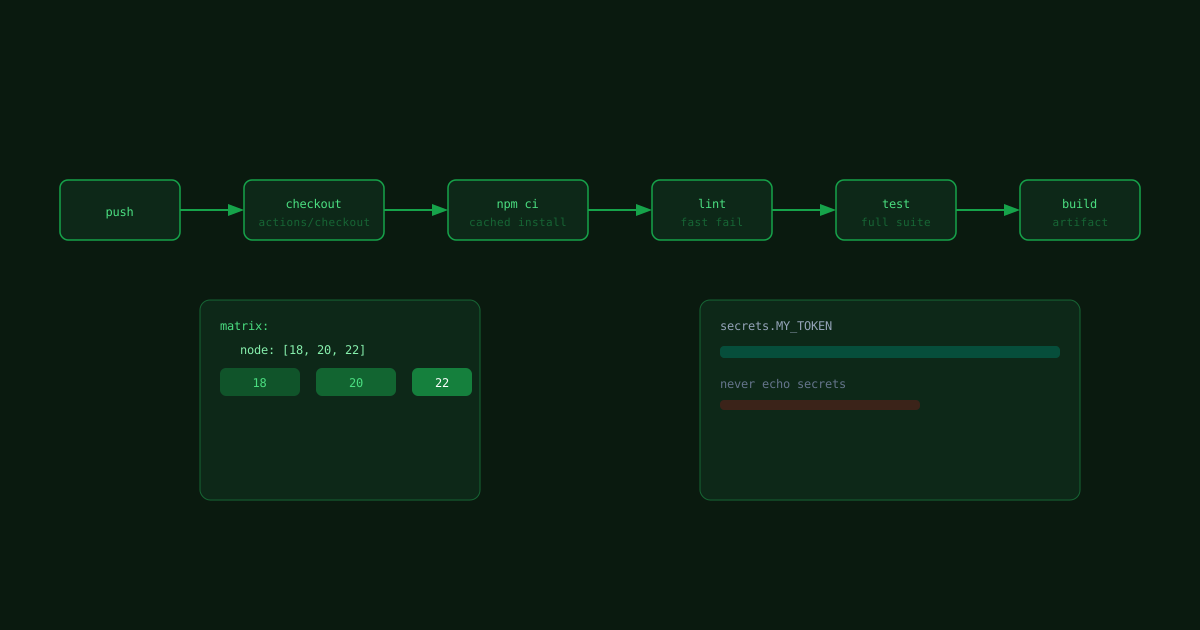
GitHub Actions CI Pipeline for Node Projects
A minimal GitHub Actions workflow that installs, tests, and builds a Node project on every push.